Deny a Shift
A shift may need to be denied if the visit was recorded in error. For example, if a Caregiver accidentally begins an EVV visit for the incorrect Consumer but completes it rather than cancel it.
Shifts are first denied by one party, then Locked as Denied by the other. If a visit is partially correct, then the shift can be Adjusted rather than denied.
Complete the following steps to deny a shift.
-
Log in to the Services Portal and search for the shift. See Search Shifts for details.
-
On the shift, click the ellipsis (…) in the Actions column to open the menu options.
-
Select Propose Denial.
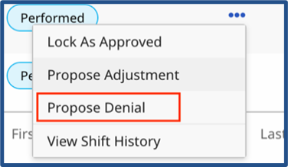
Actions: Propose Denial
-
When the Deny Shifts window opens. Complete the required fields (denoted with a red asterisk).

Deny Shifts page
-
(Required) Select a reason for the denial from the Reason for Denial field.

Reason for Denial Field
-
In the Notes field, enter a comment (seen by all users) to describe the denial. Select the confirmation statement checkbox and click the Confirm Denial.
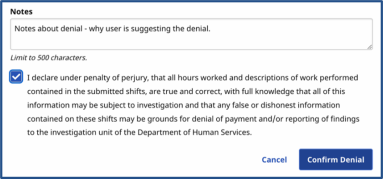
Confirm Denial
-
A Confirm popup appears to further confirm the denial. Click Yes to confirm and place the shift in a Denial Proposed status.
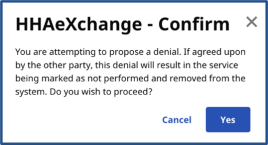
Confirm page
Further review is required in the Services Portal, depending on who submitted the denial.
-
If the Caregiver proposed the denial, then the Consumer or Representative must review and approve.
-
If the Consumer or Representative proposed the denial, then the Caregiver must review and approve.
Depending on the situation, a user can:
-
Lock as Denied, if a user agrees with a denial and the shift should not be approved.
-
Propose Adjustment to change the shift and then seek approval.
Lock Shift As Denied
-
Locate the shift with the Proposed Denial status in the search results. Click the ellipsis (…) in the Actions column and select Lock as Denied.
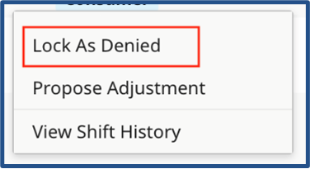
Actions: Lock as Denied
-
When the Lock as Denied page is displayed, add Notes to explain why the shift should be denied. Select the confirmation statement checkbox and click Lock as Denied.
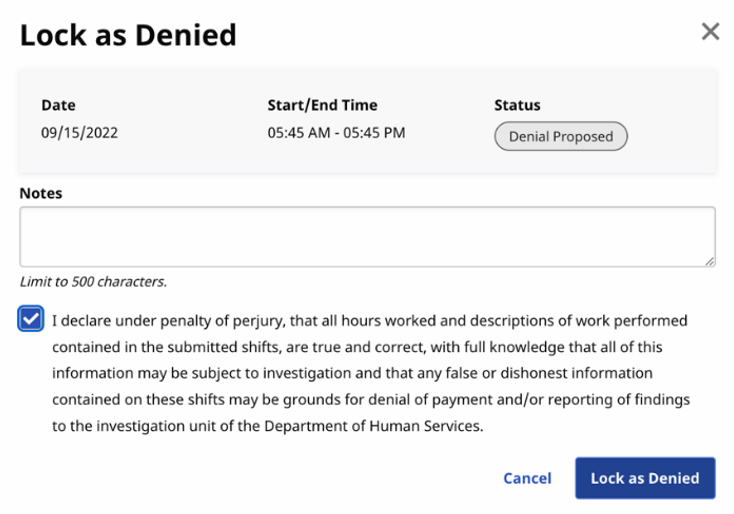
Lock As Denied page
-
A Confirm popup appears to futher contirm the denial. Click Yes to confirm and place the shift in a Denial Locked status.
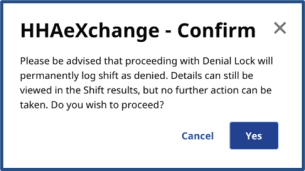
Confirm Denial
Once in Denial Locked state, the shift cannot be edited, and the status cannot be changed by the Consumer, the Representative, or the Caregiver.